Welcome to the Teacher Created Materials FAQ section. Here you'll find answers to all
your questions and solutions to any problems you may encounter.

What devices can I read my books on?
You can read and experience Interactiv-eBooks on any computer, laptop, or tablet with a web browser.
What browsers can I use?
You can access the online interactiv-eBooks from any browser. For Windows and Chromebooks, we recommend using the Chrome browser. For Macs and iPads, we recommend using the Safari browser.
Can my students access these online Interactiv-eBooks at home?
Yes, students can use the URL link from any computer, laptop, or tablet that has an internet browser and an internet connection.
Who can I contact if I need help?
At Teacher Created Materials, we want to ensure that all aspects of your shopping experience are positive! Please feel free to contact us at your convenience using one of the methods listed below.
Use the grade level filter at the top of the library to choose a grade level. Choose the All button to see all grade levels available to you.
How do I search for a book?
Use the search field at the top of the library to search for a book by title. When you type in the search field the books begin to show up with the characters you have typed.
How do I open a book?
To open a book select the book cover.
Where do I find the annotation tools?
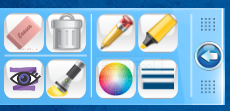
The annotation tools menu is located inside each book on the left side of the screen. Open a book and select the blue arrow on the left side of the screen. The annotation tools menu will slide out.
What annotation tools are available?
Eraser—Erases parts of any writing and drawings created with the Pencil and Highlighter tool.
Delete All—Permanently deletes all writing and drawings created with the Pencil and Highlighter tool.
Pencil—Draws or writes on any page in the ebook.
Highlighter—Highlights the content on any page in the ebook.
Hide/Show—Hides all writing and drawings created with the Pencil and Highlighter tools.
Spotlight—Focus on a specific section of the text or photo.
Line Color—Chooses a pencil or highlighter color.
Line Thickness—Adjusts the thickness of the pencil and highlighter line.
How do I navigate the book?
You can navigate the book using the navigation bar at the bottom of the screen. You can navigate by page preview thumbnails, by typing in a page of the book, by searching for keywords, or by selecting the left and right arrows. You can also choose the Table of Contents, Glossary, and Activity buttons to quickly navigate to those pages.
How do I know if a book has video content?
To see if the book you are reading has any videos select the Interactivities List button at the top-right of the window.
How do I play a video?
Select the Video button to play a video.
Where do I find the interactive activities?
The interactive activities can be found at the end of each Interactiv-eBook. You can navigate there quickly by selecting the Activities button on the navigation bar.
What activities are available in each book?
The activities from book to book may vary, but may include Vocabulary, Word Work, Comprehension, Writing, and Assessment activities.
How do I turn on or off the automatic reading or highlighting?
To turn automatic reading or text highlighting on or off select the Settings button at the top-right of the window. Then, choose the desired switch to control automatic reading or text highlighting.